How to Auto-Print Online Orders in Your Restaurant Kitchen
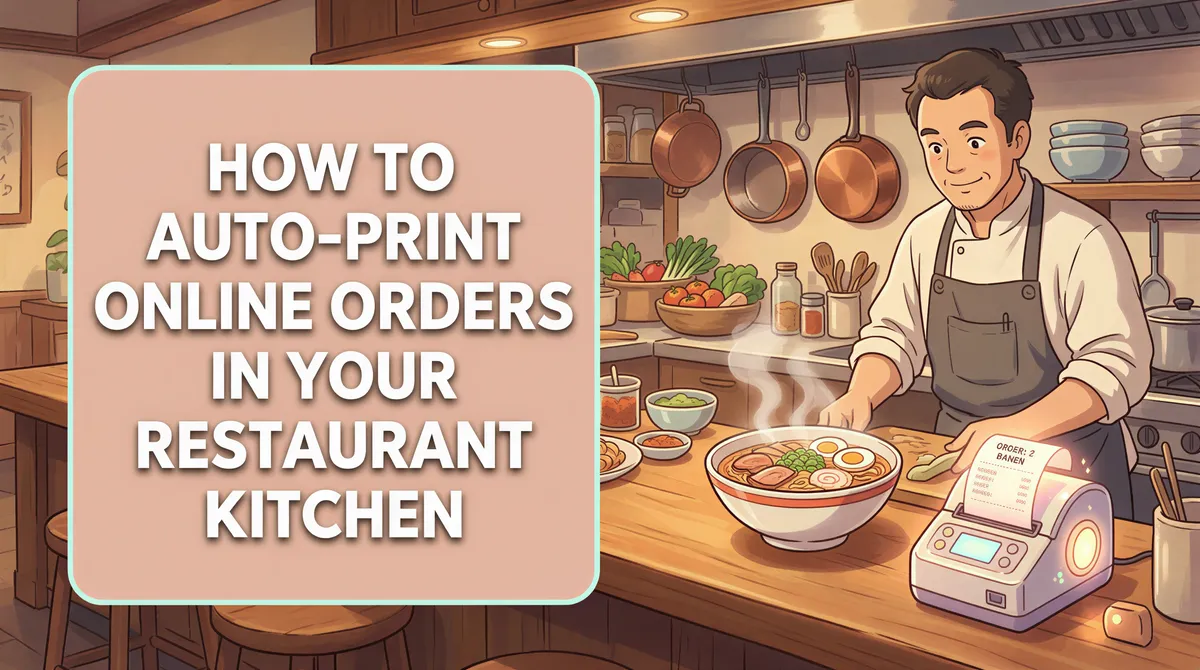
It is the Friday dinner rush. Three tablets are buzzing on the counter, each one from a different delivery app, and someone has to keep tapping "Accept" and then "Print" on every single order. Miss one and a customer waits an extra twenty minutes. Tap the wrong thing and the ticket never reaches the kitchen.
There is a calmer way to do this. Your order emails can print themselves, straight to the kitchen printer, the second they arrive. No tablet babysitting, no browser, no staff member glued to a screen.
Here is how automatic order printing actually works, and how to set it up in about five minutes.
Table of Contents
- Why printing orders by hand breaks down
- What "auto-print" really means
- The three ways restaurants print online orders
- Setting up email-to-print in five minutes
- What you can and cannot control
- What you need to make it work
Why printing orders by hand breaks down
Every extra tap is a chance to lose an order. During a rush, staff are cooking, packing, and answering the phone, so the "watch the tablet and press print" job is the first thing that slips. The result is a familiar one: tickets printed late, printed twice, or not at all.
It also does not scale. One delivery platform is manageable. Add a second and a third, each with its own tablet and its own login, and the counter turns into a call center. The kitchen needs a single, reliable stream of tickets, not four separate screens to monitor.

What "auto-print" really means
Almost every ordering platform already sends you an order confirmation by email. Uber Eats, Deliveroo, Talabat, your own online store, your booking tool: they all email you when an order comes in.
Auto-print simply catches that email and sends it to your printer for you. Nothing changes about how you receive orders. You are just removing the human step in the middle, the one where someone has to notice the email and press print.
The three ways restaurants print online orders
Platform tablets. Each delivery app gives you a tablet that can print to its own printer. This works, but you end up with a tablet per platform, separate hardware to maintain, and staff switching between screens.
Print from the browser. You open the order email or dashboard and hit print. Free, but entirely manual, and it falls apart the moment more than a few orders land at once.
Email-to-print. You get one private print address. You forward your order emails to it (or add it as a notification recipient), and every order prints automatically to the printer you choose. One address, any platform, no extra tablets. This is what ItJustPrints does.
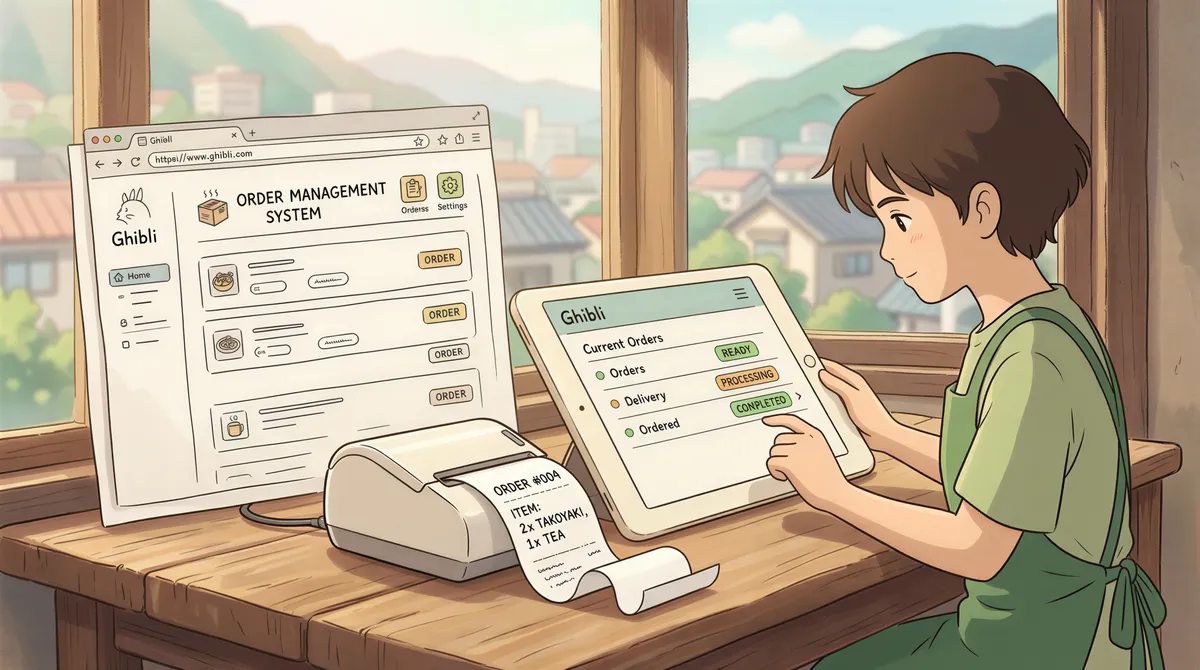
Setting up email-to-print in five minutes
The setup is deliberately boring, which is the point:
- Install the app on a phone or tablet that stays on the same Wi-Fi as your printer.
- Pick your printer from the list the app finds on your network.
- Copy your private print address (it looks like
print-xxxx@in.itjustprints.app). - Paste that address into each platform as the order-notification email, or set up a forwarding rule in your inbox so order emails go to it.
That is it. The next order that lands prints on its own. Leave the device plugged in and on the counter, and it keeps printing all shift.

What you can and cannot control
Once orders flow in by email, here is what the app actually gives you.
A station can hold more than one print address, and each address carries its own label and its own choice of what to print: the message body, the attachments, or both. Most order emails are body-only, so that setting matters more than it sounds. A "Bookings" address can print attachments only, while your "Orders" address prints the email itself.
Rules are a separate and simpler thing: a sender allowlist. Add orders@ubereats.com and only that sender prints. Add nothing, and everything sent to the address prints.
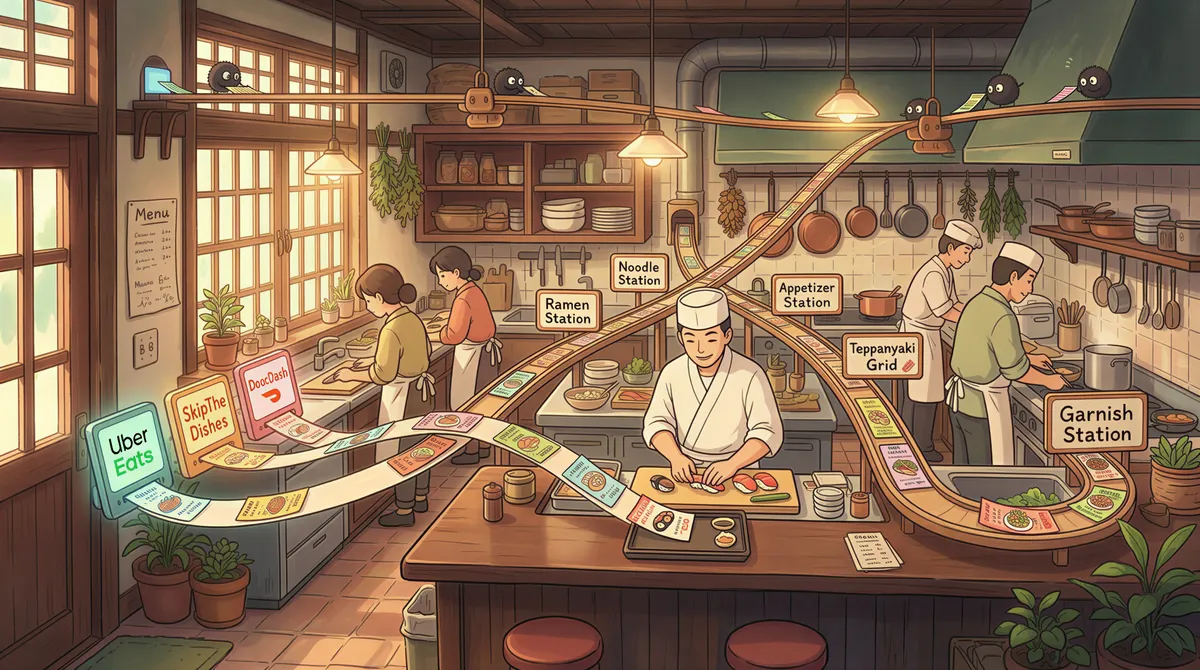
What the app does not do today is route. A station prints to one printer, so there is no per-sender printer, no copy count, and no paper tray. Kitchen tickets on one printer and packing slips on another means a second device running its own station, or AutoPrintEmail on a computer, which has the full rules engine.
What you need to make it work
You do not need a special POS or a new printer. You need a Wi-Fi or network printer that supports AirPrint or IPP (most modern receipt and office printers do), a device to run the station on, and the order emails you already receive.
If you are drowning in delivery tablets, start with one printer and one platform, point its order emails at your print address, and watch the first ticket print itself. Then add the rest.
Ready to stop babysitting the counter? Try ItJustPrints free and let your orders print themselves.
Your next order could print itself.
14-day free trial, cancel anytime.