How to Print Shipping Labels Automatically, No PC
Buy the label. Download the PDF. Open it. Tap Print. Pick the printer. Notice it's about to print on Letter paper. Fix it. Print. Do it again for the next order.
That's ten taps a parcel, and in November it's a few hundred taps a day. Here's how to get it down to one, with no computer at the packing table.
Table of Contents
- What "automatic" can actually mean
- The setup: a print address for labels
- The printer: it has to be on Wi-Fi
- The one thing to test: the label's direction
- Making it fully hands-free
- What it costs
What "automatic" can actually mean
Shipping tools are great at buying labels and terrible at printing them for you. Pirate Ship gives you a PDF download or a share link. ShipStation downloads a PDF to your browser. Either way, the label ends up as a file, and the file still needs someone to print it.
So the fix isn't a new shipping tool. It's a printer that prints a PDF the moment it receives one.

The setup: a print address for labels
ItJustPrints turns a phone or tablet next to your printer into a print station with its own email address. Anything sent to that address prints. Labels are the cleanest use of it there is:
- Put the station by your label printer and give it a print address called Labels.
- Set that address to print attachments only, with the message body turned off. Now an email with a label attached prints the label and nothing else.
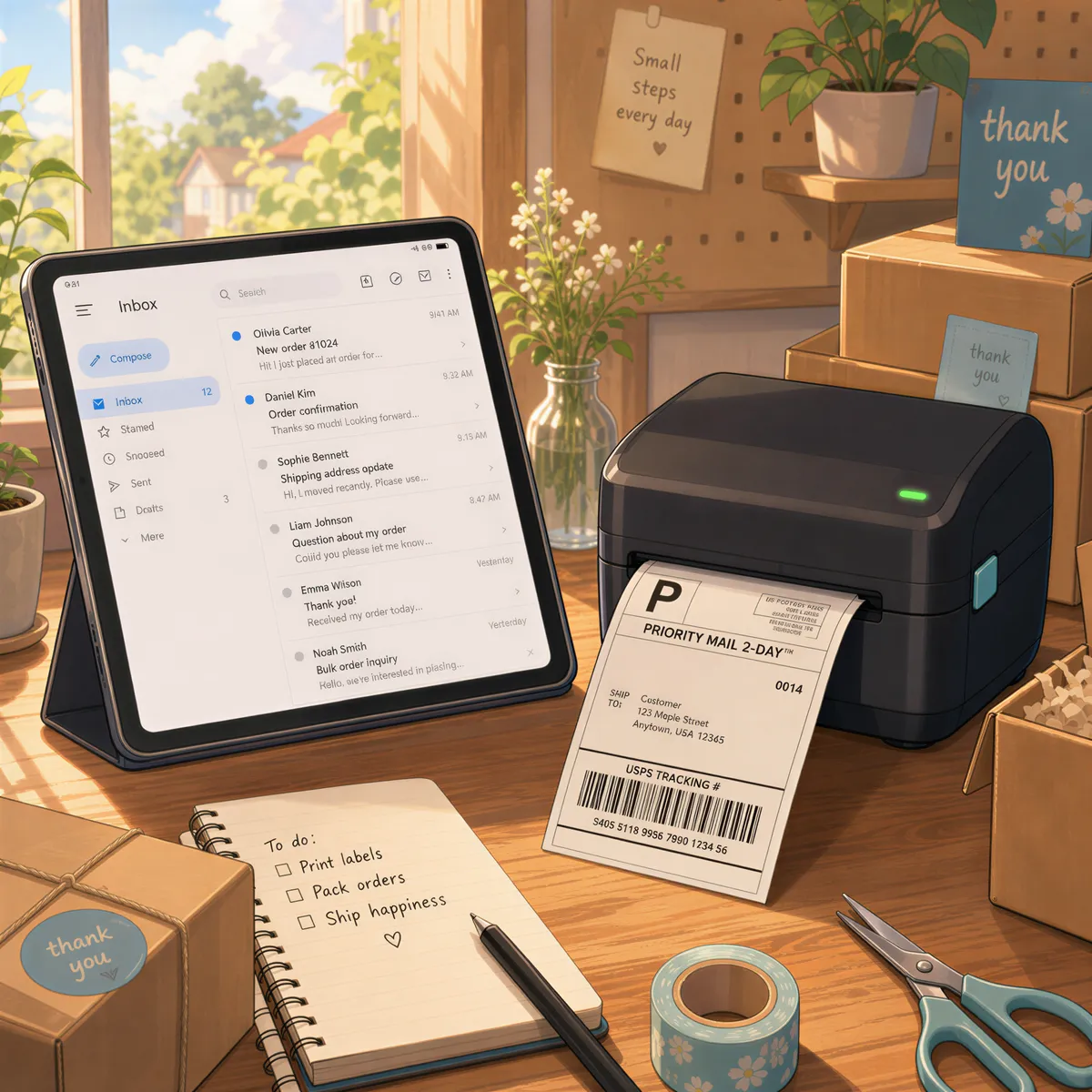
- When you buy a label, send the PDF to the Labels address. From a phone that's the share button, then Mail. From a laptop, attach and send.
The label is on the printer before you've picked up the box. One of our first customers runs their shop exactly like this: 6x4 label PDFs, sent from Gmail, printing at the packing table with no one touching the station.
The printer: it has to be on Wi-Fi
This is where most setups break. A lot of popular label printers connect by USB only, and a phone or tablet can't reach those.
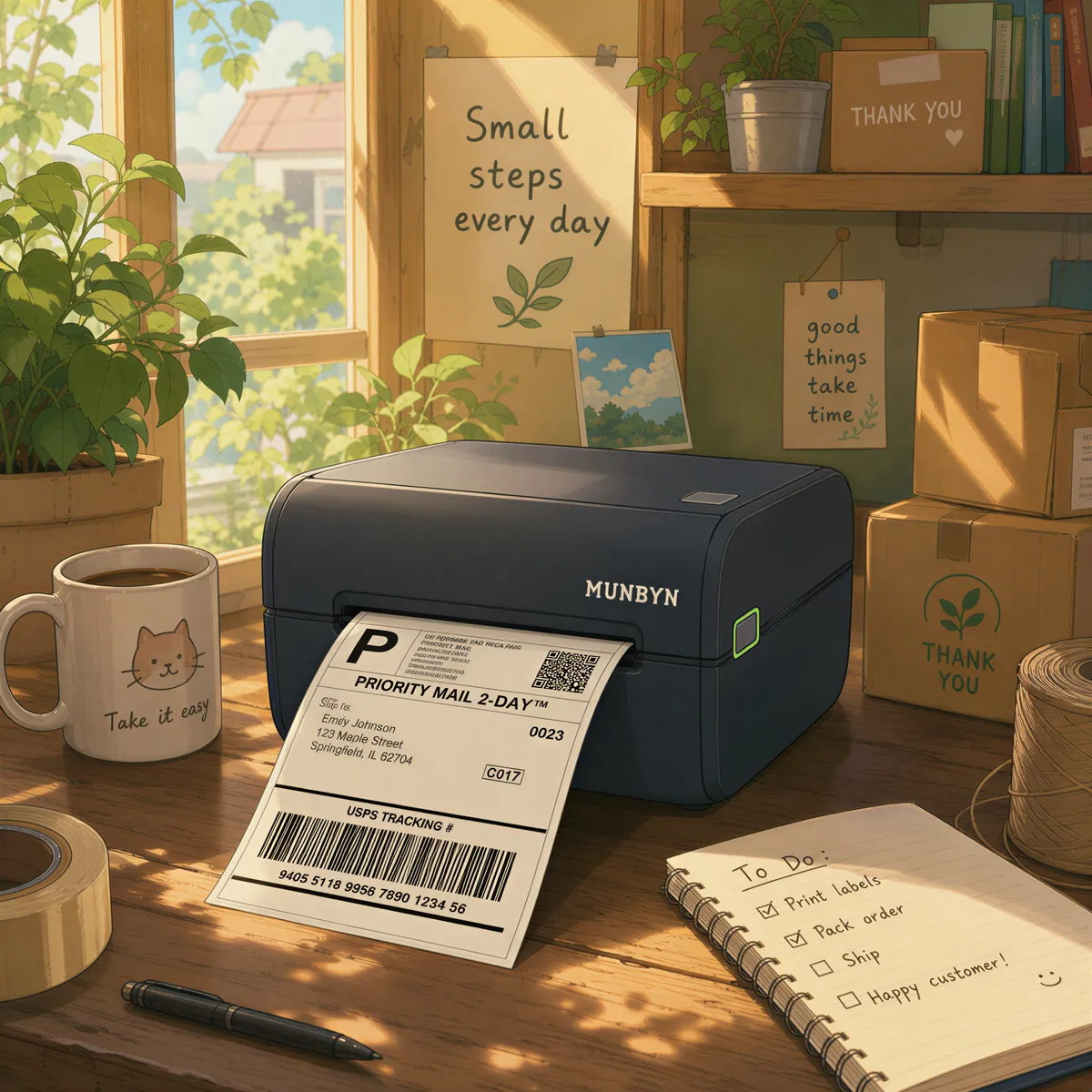
You want a label printer that joins your Wi-Fi and supports AirPrint (for an iPad) or network printing (for Android). The Rollo Wireless is one: Wi-Fi, AirPrint, and 4x6 labels, which is the size most carriers use.
Already have a Wi-Fi office printer? It works too. You'll be printing labels on sheets and cutting them, which is fine at low volume and painful at high.
The one thing to test: the label's direction
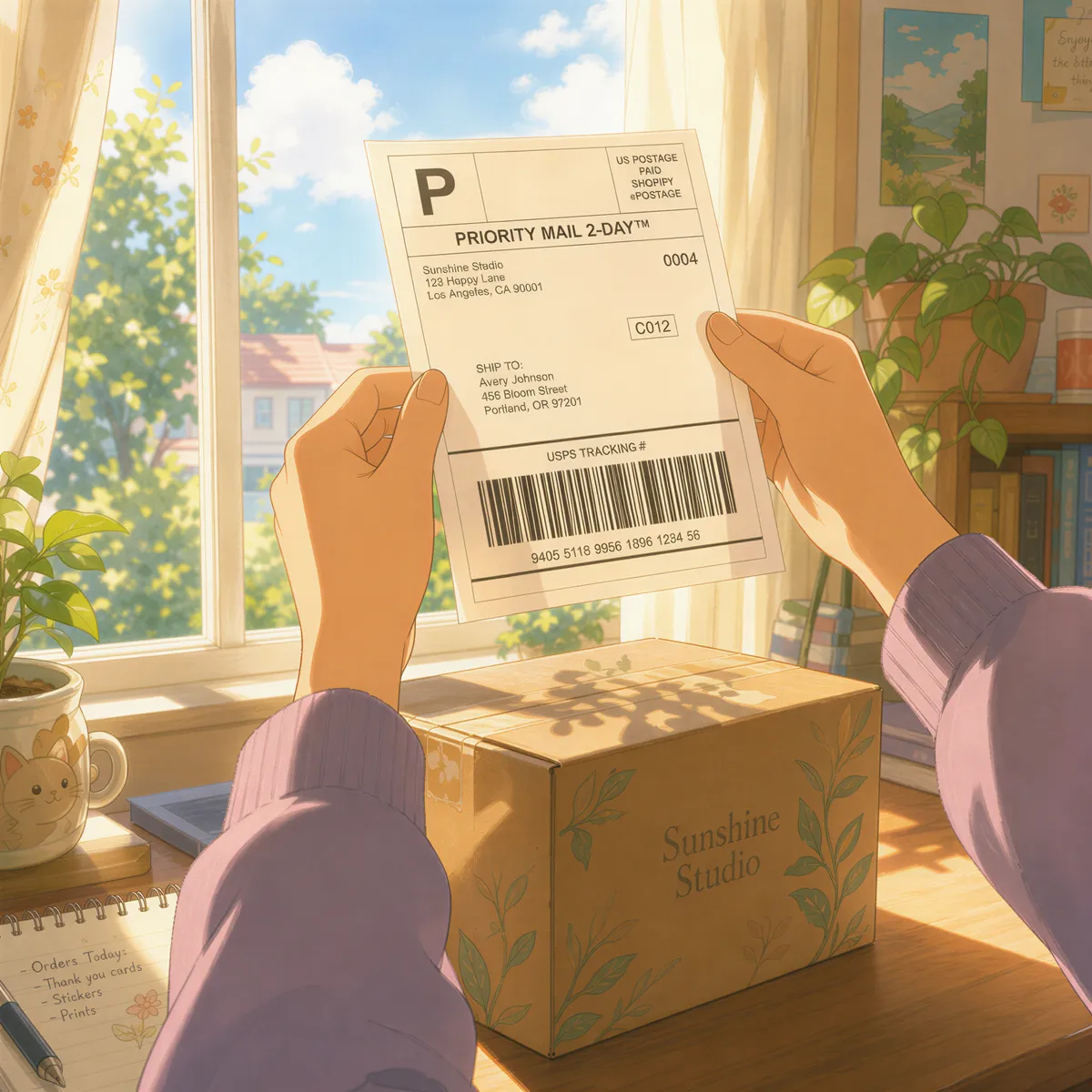
Label PDFs come in two shapes. Some are 4x6 portrait, the way a label printer feeds. Some are 6x4 landscape, which is what you get when you export a label from a document app.
Landscape labels can come out turned or shrunk, depending on how your printer handles the paper it has loaded. So before your first busy day, send one test label and look at it:
- Is it the right way round?
- Does it fill the label, edge to edge?
If it doesn't, check your shipping tool's label settings for a 4x6 portrait option. Most have one. Fixing it once at the source beats fiddling with the printer every day.
Making it fully hands-free
The step that's left is sending the PDF. Two ways to get rid of it:
- If your tool emails labels to you, set an email filter that forwards those messages to the Labels address. Then you never touch it. Our guide to forwarding from Gmail shows how to forward only one sender.
- If it doesn't, sharing the PDF from your phone is one tap. Still a lot better than ten.
Keep the station plugged in. On an iPad the screen stays on with the app open. On Android the screen can sleep and labels still print. The details are in keep the app open.
What it costs
ItJustPrints is $99 a month per station, or $999 a year, with a 14-day free trial through the App Store or Google Play. One station drives one printer, so a label printer and an office printer are two stations.
Packing at a desk with a computer that's on all day anyway? AutoPrintEmail runs on Windows or Mac and does the same job.
Ready before the November rush? Set up a label station.

Your next order could print itself.
14-day free trial, cancel anytime.