Print WooCommerce Orders Automatically on a Tablet
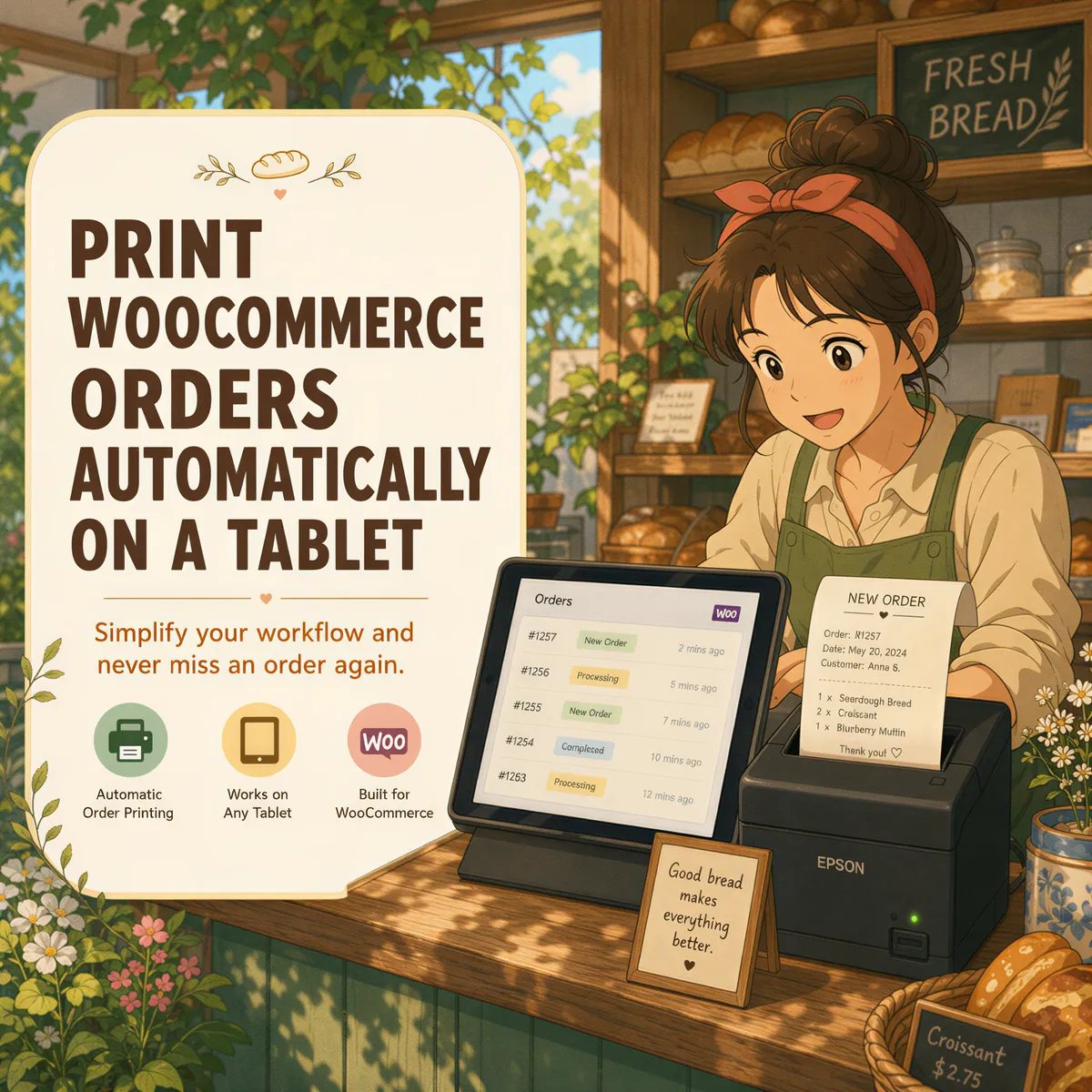
A WooCommerce order comes in. Your phone buzzes. You open the admin, find the order, hit print, wait for the dialog, pick the printer. Then the next one comes in.
There are plugins for this, but many of them quietly need a print client running on a computer, or a cloud print service on top, to actually reach your printer. There's a simpler route, and it uses an email WooCommerce already sends you.
Table of Contents
- The email you already have
- Step 1: add a print address to the New order email
- Step 2: the station
- Step 3: make it print like a ticket
- Which printer works
- Keep strangers off your printer
- Before Black Friday, not during it
The email you already have
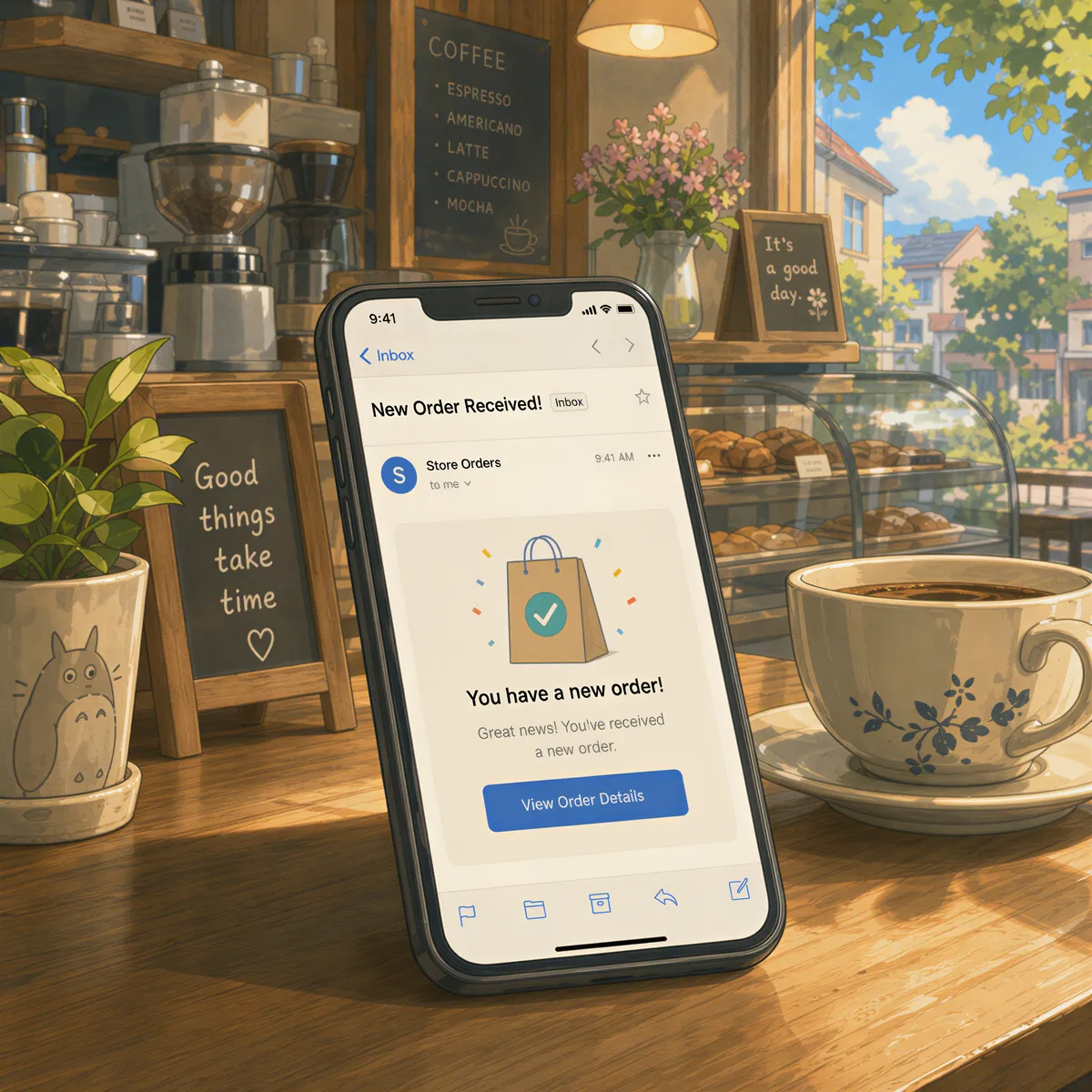
Every time someone checks out, WooCommerce sends a New order email to the store admin. It has the order number, the items, quantities, options, the customer's address and their note. In other words, it's already an order ticket.
All you need is for that email to come out of a printer by itself.
Step 1: add a print address to the New order email
ItJustPrints gives a phone or tablet beside your printer its own private email address. Anything sent there prints.
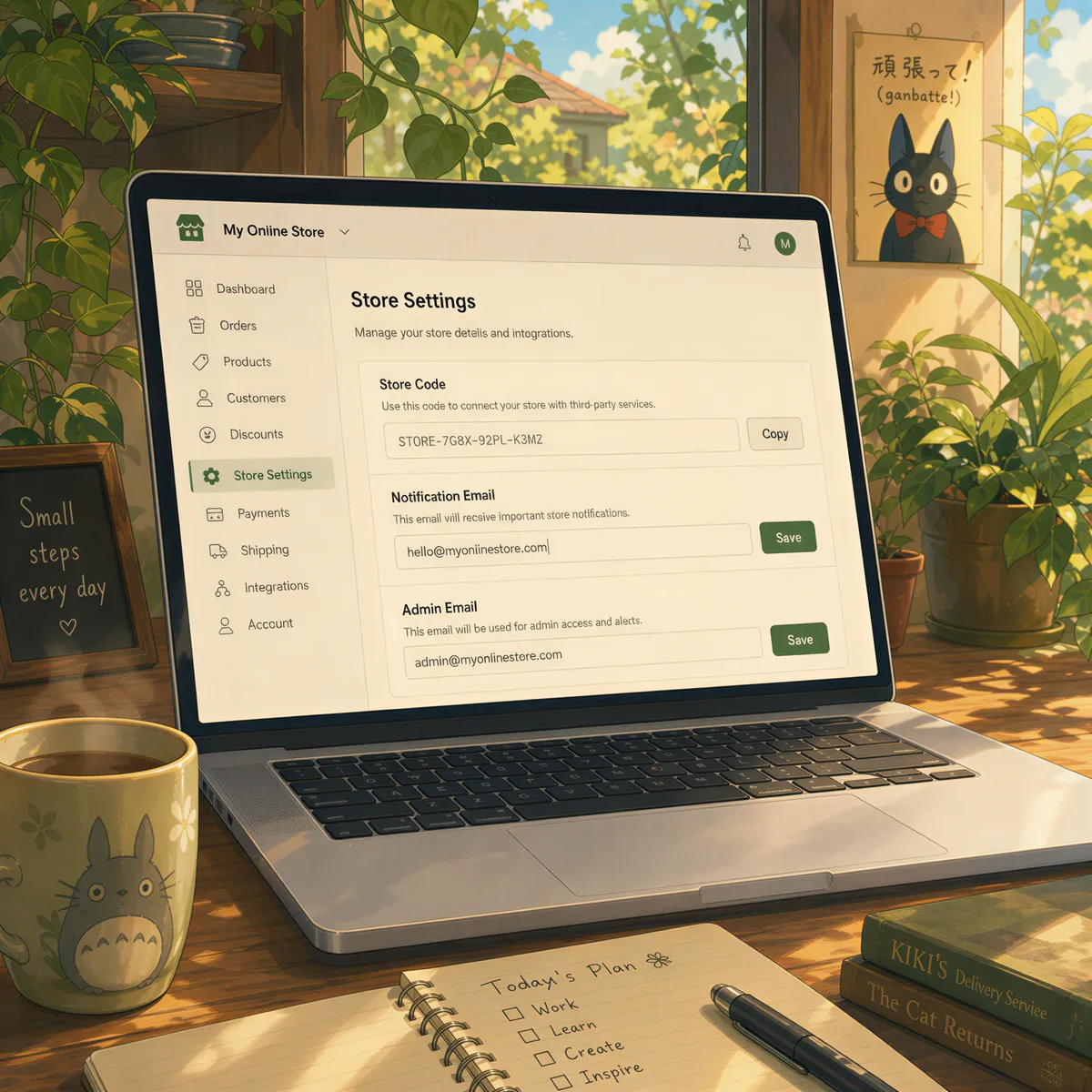
In WooCommerce, go to Settings, then Emails, and open New order. The Recipient(s) field takes a comma-separated list, so keep your own address and add the print address after it:
you@yourshop.com, print-xxxx@in.itjustprints.app
Save. That's the whole integration. No plugin, no API key, nothing installed on your site.
Step 2: the station
Put the phone or tablet next to the printer, plugged in:
- Android is the easy one. The screen can go dark and orders still print.
- iPad works too, but the app has to stay on screen with Auto-Lock off. Apple pauses hidden apps.
The station picks up each order email and sends it to your Wi-Fi printer. If the printer's out of paper or the Wi-Fi drops for a minute, orders wait in the queue and print when it's back. Nothing gets skipped.
Step 3: make it print like a ticket
Each print address has its own settings, so set this one up for orders:
- Print message body: on. WooCommerce's order email is the body, not an attachment.
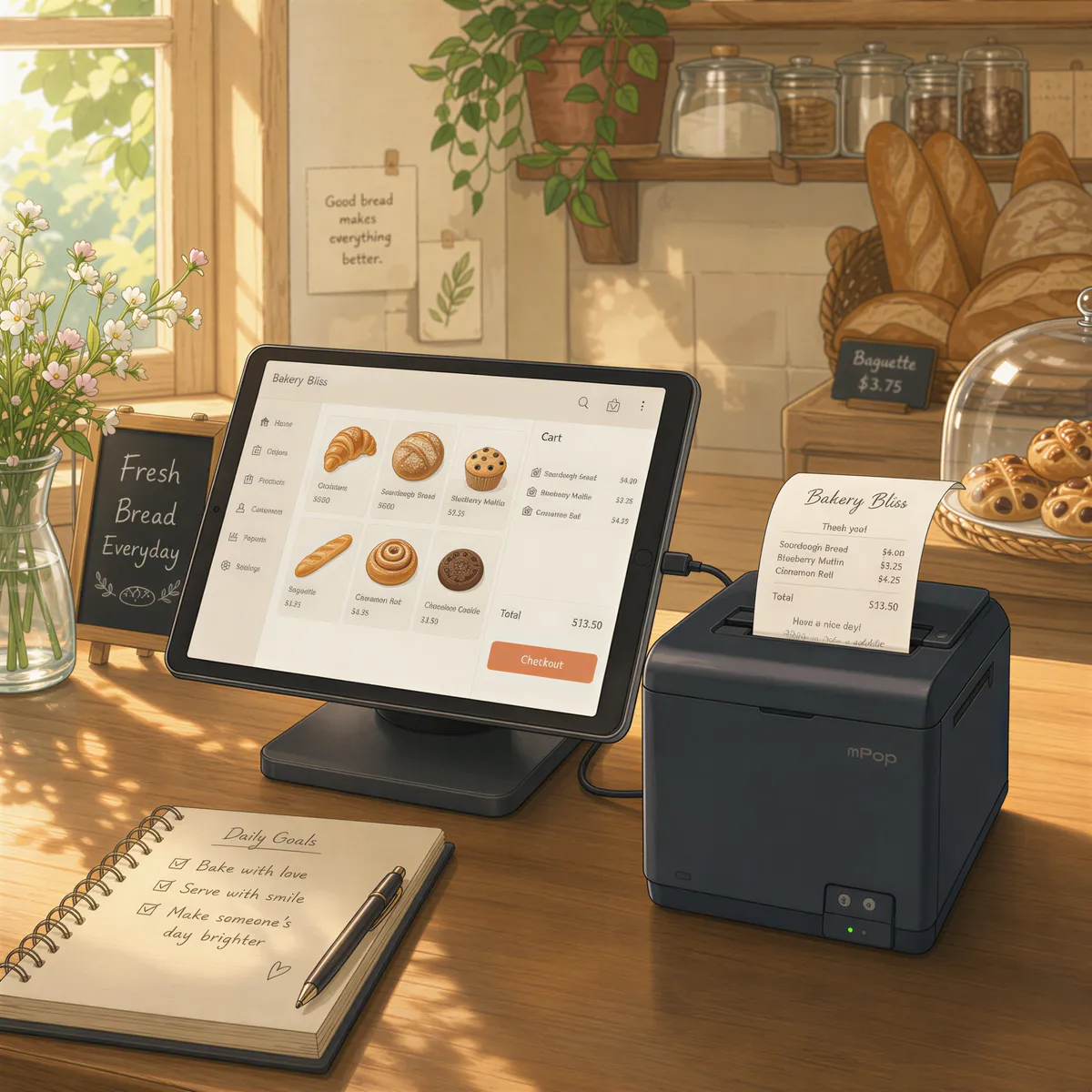
- Paper size: Letter or A4 for packing slips on an office printer, or Receipt 80mm for a kitchen-style ticket. The receipt sizes drop the margins to zero so the whole roll width gets used.
Place a test order (turn on a manual payment method like Cash on delivery for it) and look at what comes out.

Which printer works
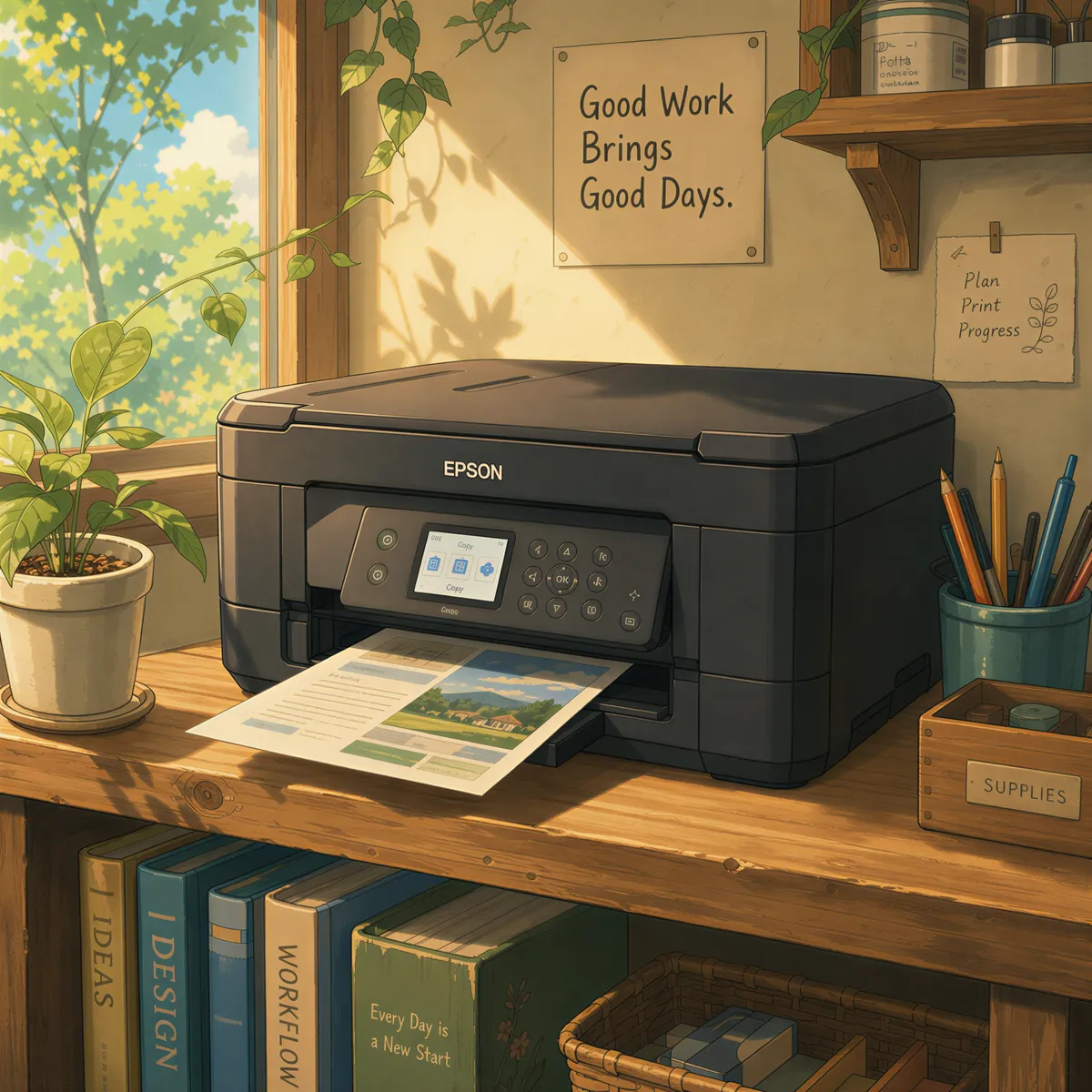
Any Wi-Fi office printer that supports AirPrint or network printing. That covers most printers sold in the last decade.
Receipt printers are trickier. Most of them talk to tablets through a POS app, not normal printing, so they never show up. You need one that supports AirPrint or network printing, such as the Star TSP654II AirPrint. We go through the options in iPad receipt printers.
Keep strangers off your printer
Your print address is private, but email addresses leak. Add a rule so the station only prints mail from your store's sending address. Anything else is dropped before it reaches the queue.

Before Black Friday, not during it
Set this up in a quiet week. Run a few test orders through, check the paper, and leave the station plugged in. On the busiest day of the year you want it to be the one thing you don't think about.
ItJustPrints is $99 a month per station, or $999 a year, with a 14-day free trial through the App Store or Google Play.
Running your shop from a computer that's on all day anyway? AutoPrintEmail does this on Windows or Mac. On Shopify instead? Here's printing Shopify orders automatically.

Your next order could print itself.
14-day free trial, cancel anytime.